
Making a batch catalog in an afternoon
A practical walkthrough of Batch Try-On for brands and online stores putting a new drop on models, from choosing photos to saving the finished set.
A new drop usually arrives as a pile of product photos and a deadline. The pieces are photographed flat, on a mannequin or on a hanger, and every one of them needs to appear on a model before it goes on sale.
Batch Try-On is built for that afternoon. You choose a set of model photos and a set of garment photos, decide how to pair them, check the cost, and let the run work in the background. This is how to do it well, step by step.
1. Choose the model photos
Start with the people. You have three sources, and a batch can mix them.
- Ready-made studio models. ClothShift includes a cast of studio models you can use straight away, with no casting step.
- A model you create. In Models, describe the person you need, from age and build to hair and setting, and keep the result. It suits a brand that wants one consistent face across a season.
- Your own model photos. Photos from a past shoot work well, as long as you have permission to use them.
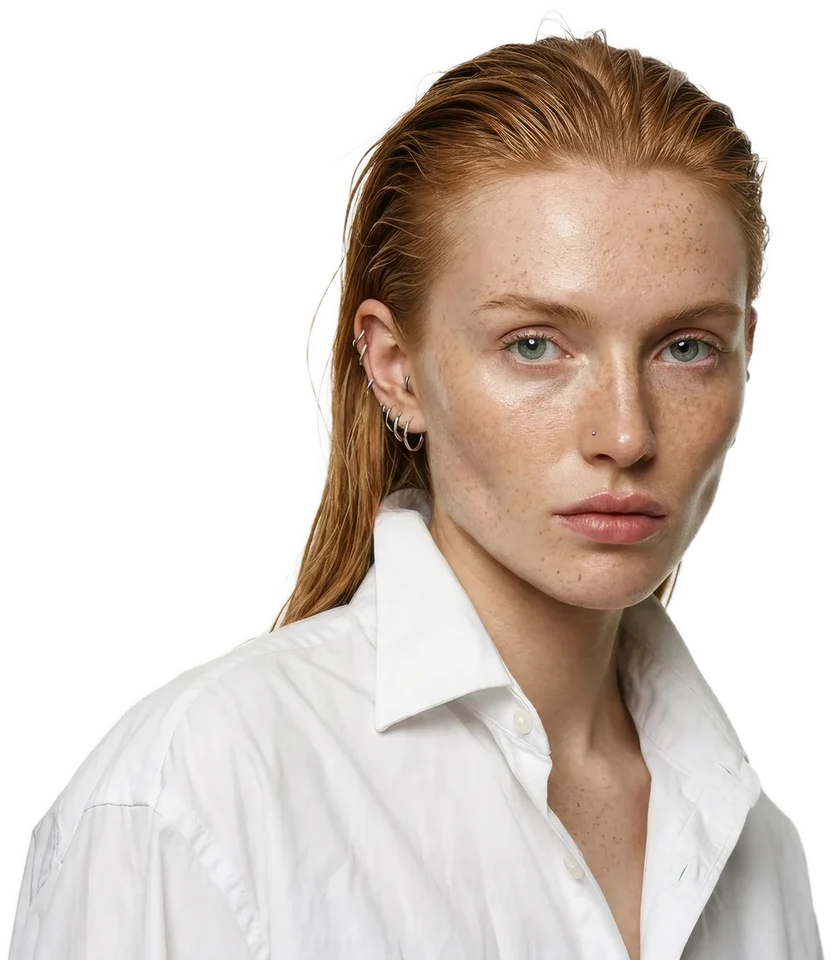
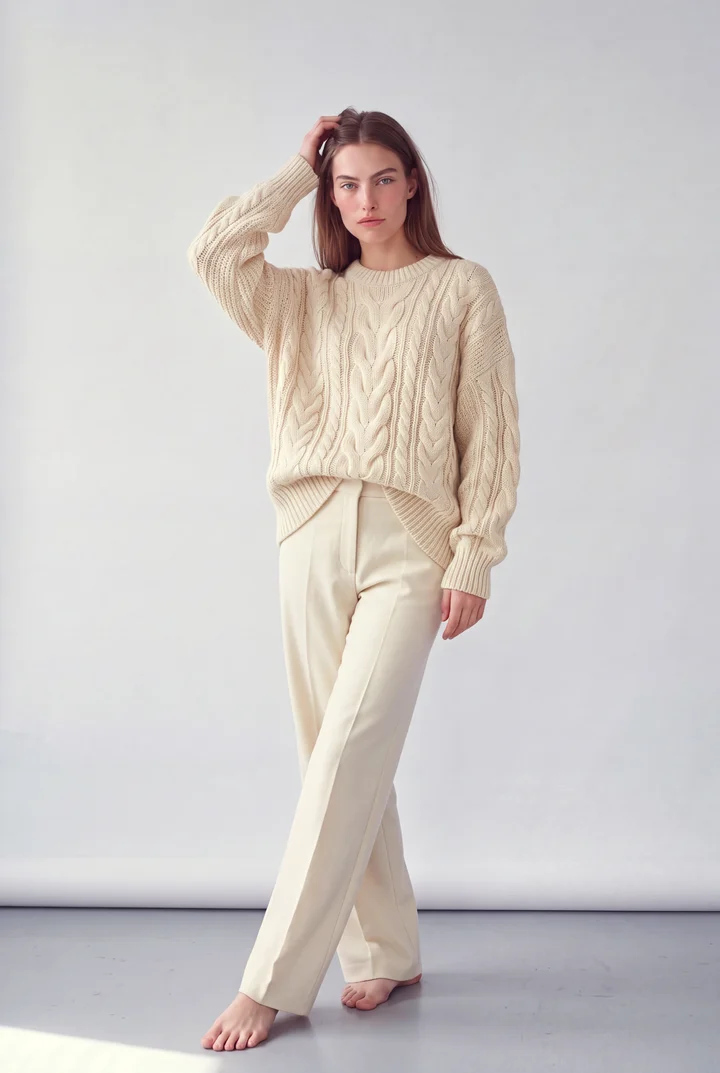
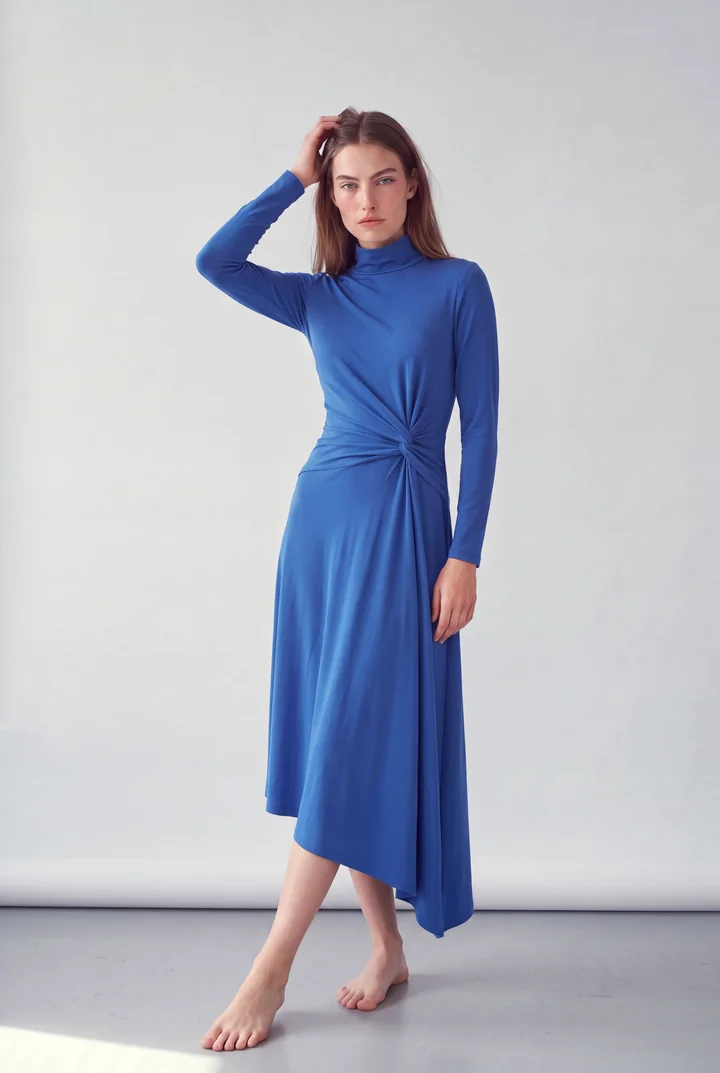
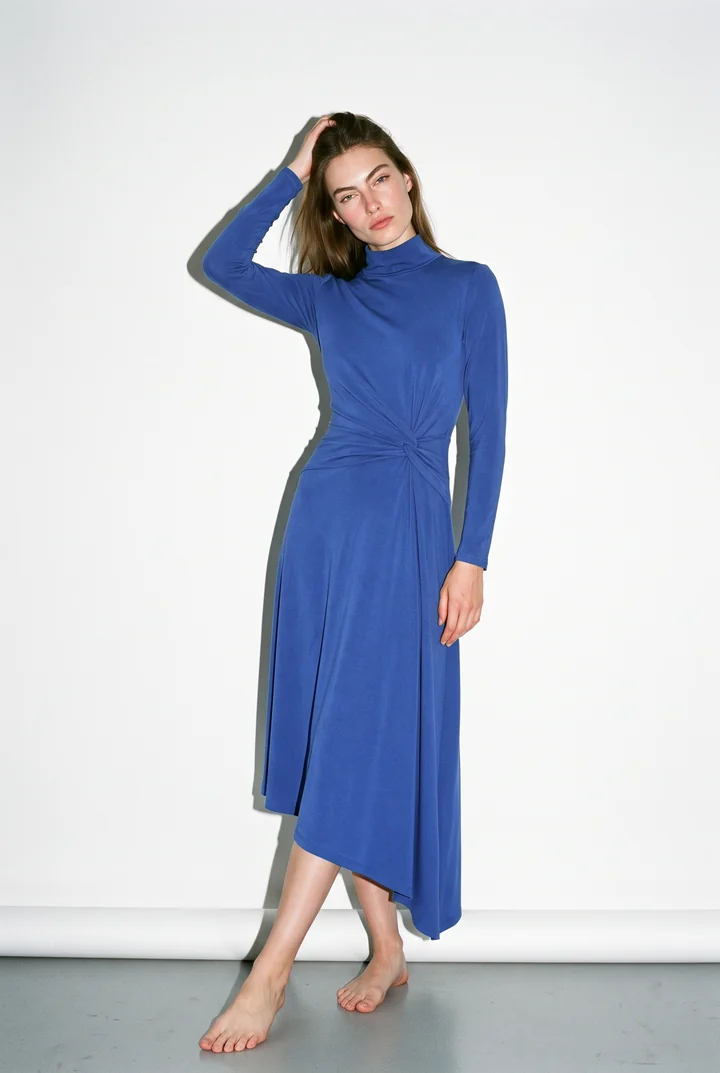
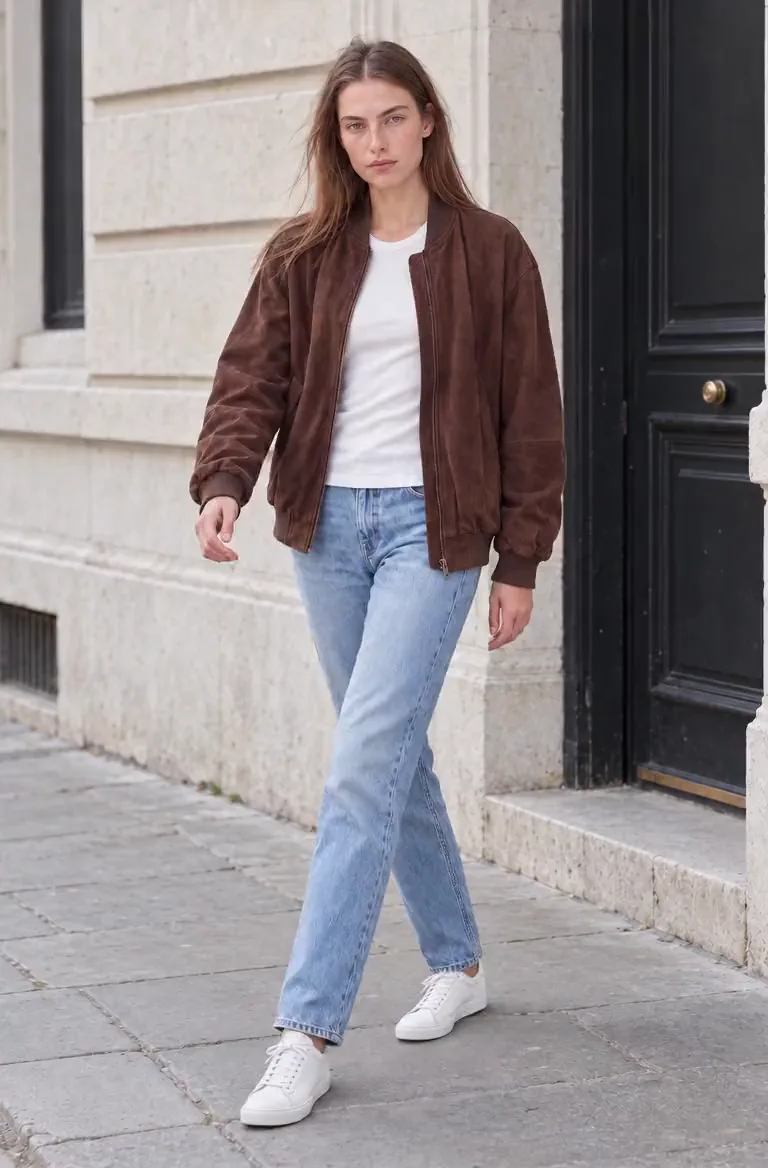
Isla, one of the ready-made studio models. Choosing a regular face for the brand is the quickest way to make a catalog look like one shoot.
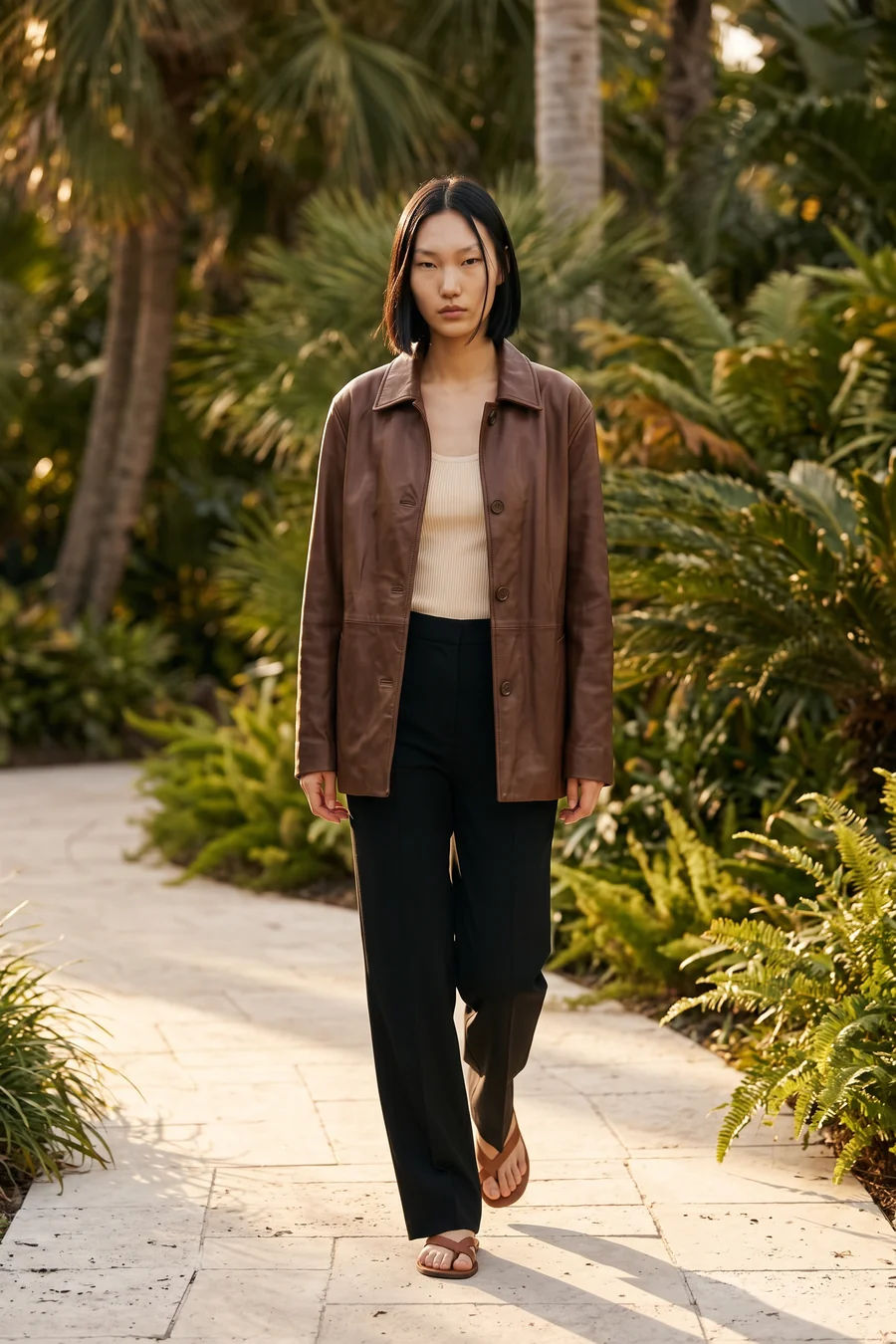
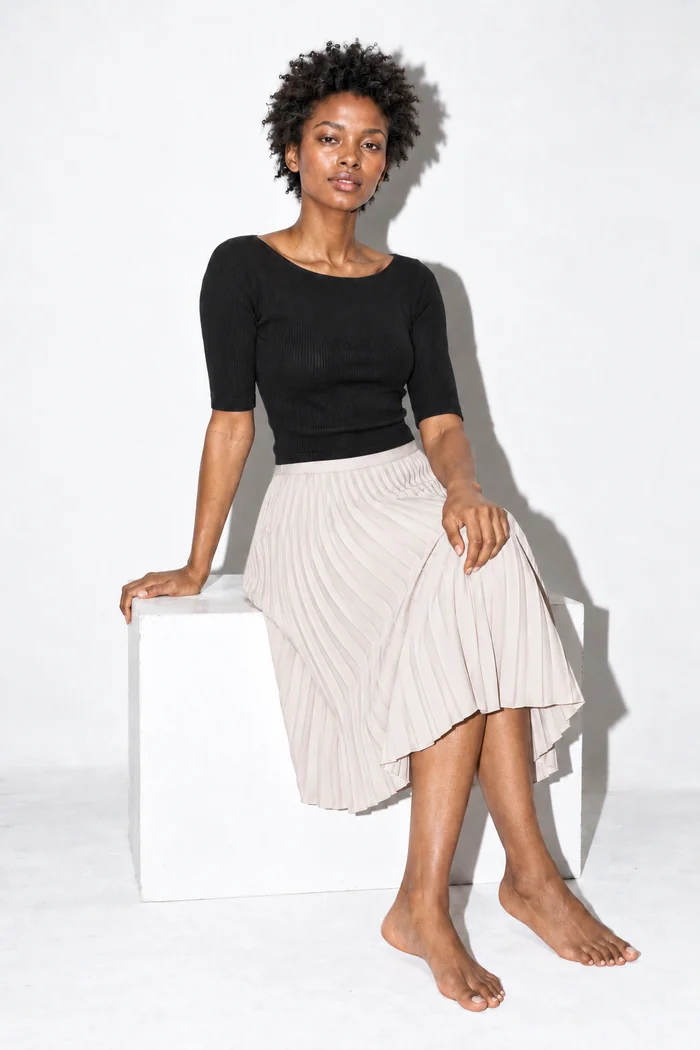
The model photo sets the scene. Its background, light and pose carry through to the result, so pick photos that look like the catalog you want: a plain studio wall for product pages, a street or terrace for a lookbook.
What works:
- The person clearly visible, not far away from the camera
- Good, even light
- A pose that shows the area the garment covers
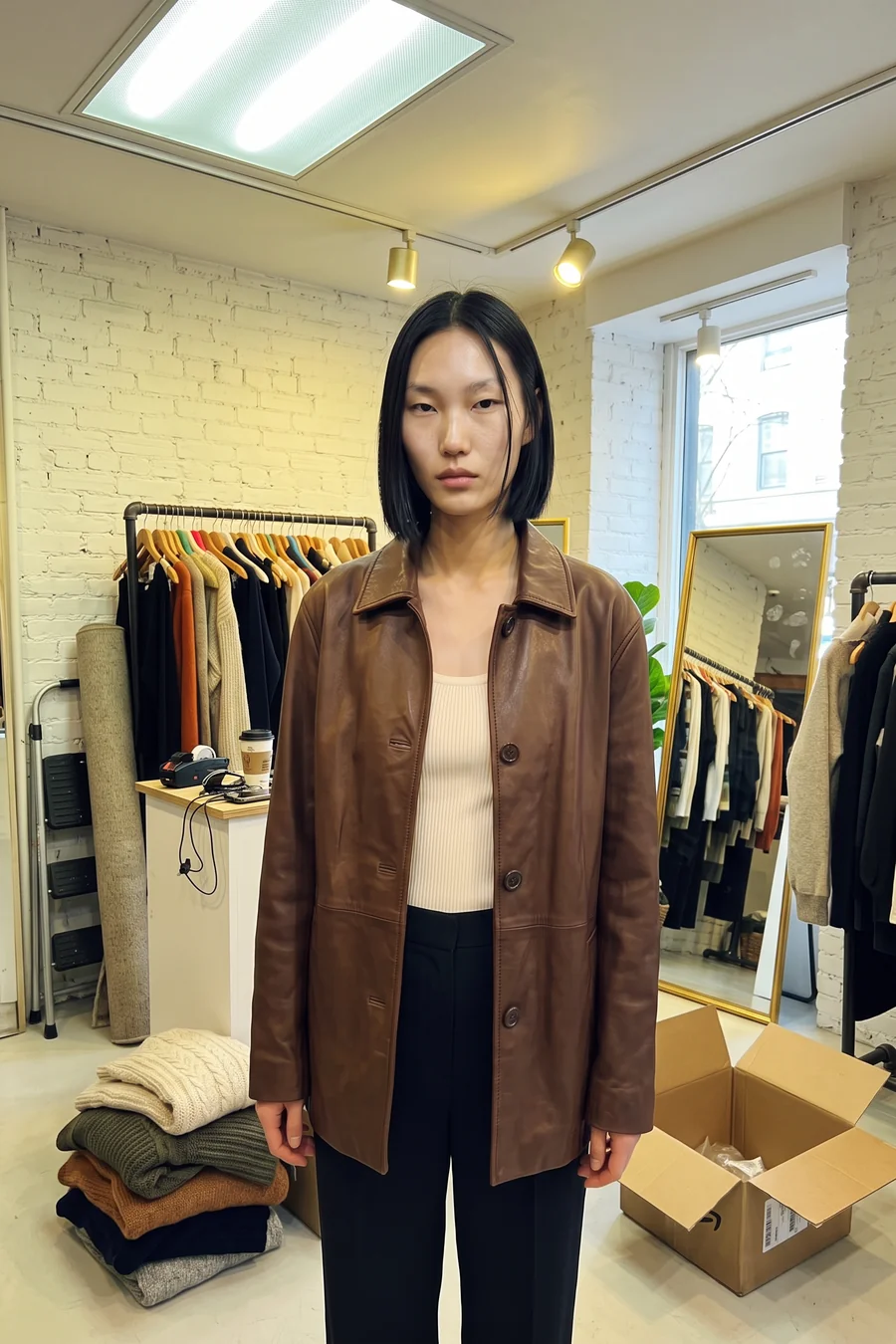
What to avoid is short: very dark photos, and very wide shots where the person is small in the frame. Those are the real limitations. Almost everything else is workable.
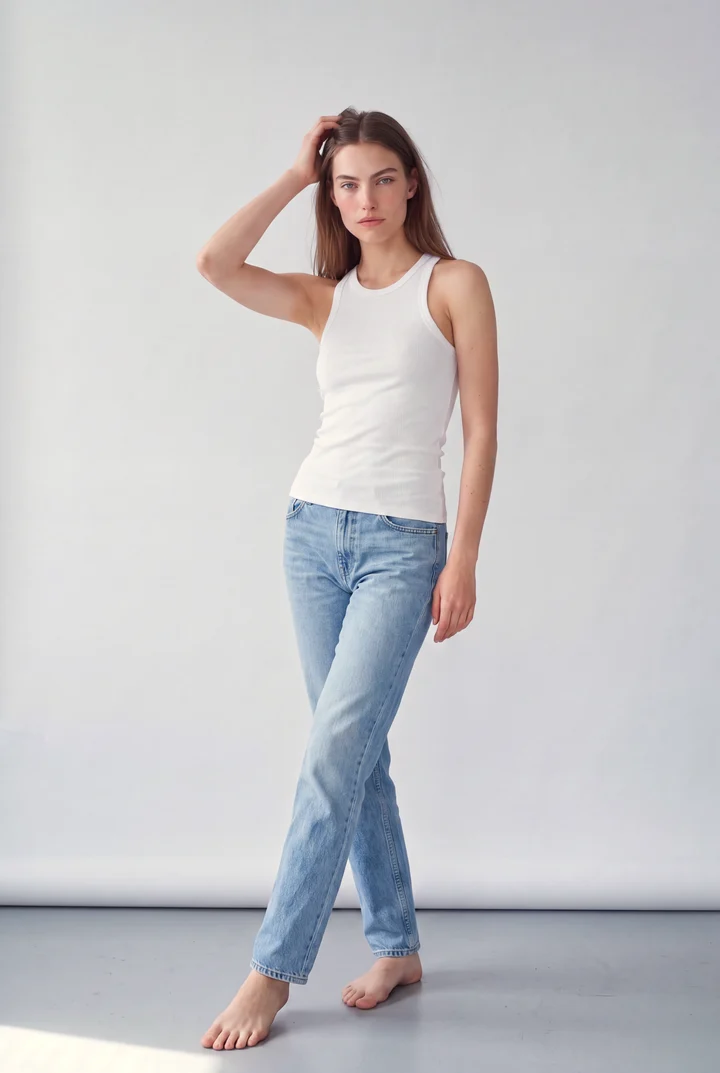
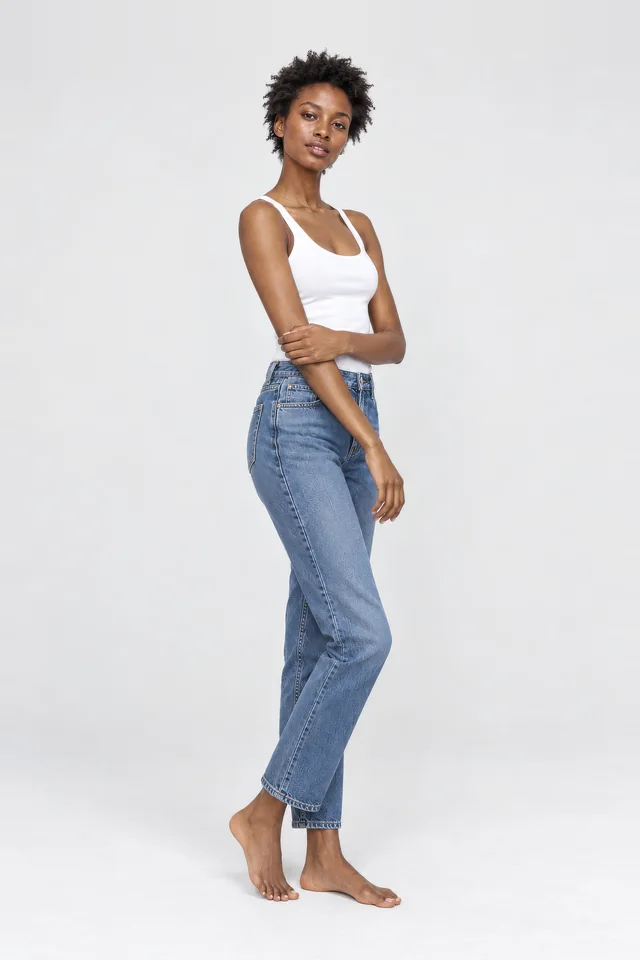
A clean model photo: full figure, even light, nothing in front of the body. It gives the try-on a clear picture of the pose to work with.
2. Choose the garment photos
Next, the product. Flat-lays, ghost mannequins, photos of someone wearing the piece and screenshots all work. Keep the whole garment in frame, and don't crop off a hem or a sleeve.
For a batch, one detail matters more than it does for a single image: consistency. If your garment photos share the same colour balance and light, the results will match across the set. If half the drop was shot under warm bulbs and half by a window, the difference will show on the product page.
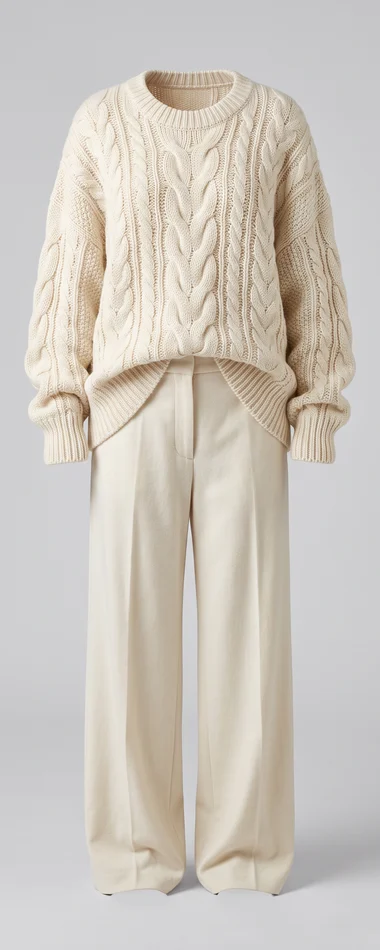
A ghost-mannequin photo of a full outfit. The shape and fabric are easy to read, which is all the try-on needs from the garment side.
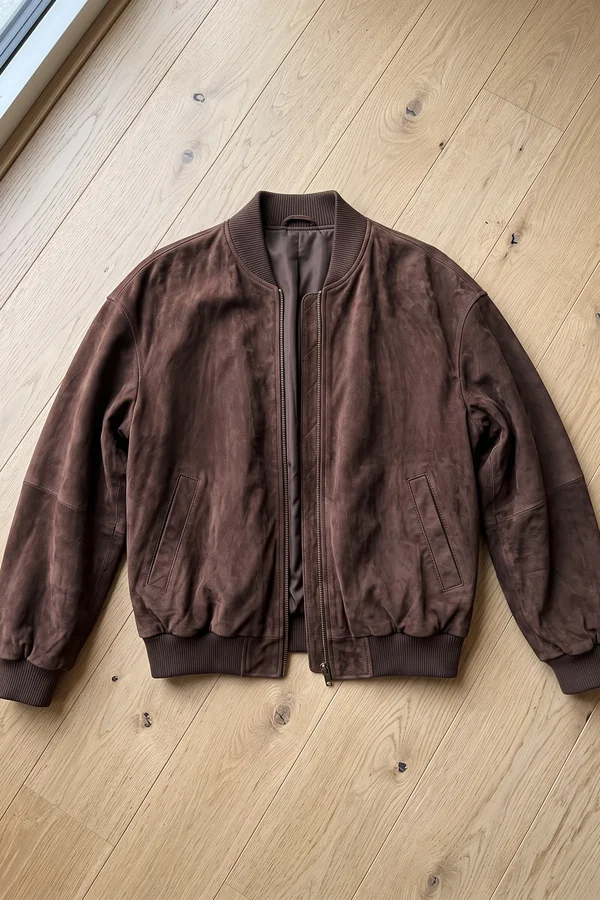
A flat-lay shot quickly on the floor also works. It doesn't need a studio, only the whole jacket in frame and enough light to show the suede.
3. Pair them
With both sets selected, choose how they meet. There are two options.
Every combination puts each garment on each model. Choose it when you want the whole drop on every model, or when you are testing which model suits the brand.
In order pairs the first model with the first garment, the second with the second, and so on. Choose it when you already know who wears what. It needs the same number of model and garment photos.
Either way, you can preview the pairs before you start, remove any pairing you don't want, and restore it if you change your mind. A batch holds up to 100 photos and produces up to 400 finished images per run.
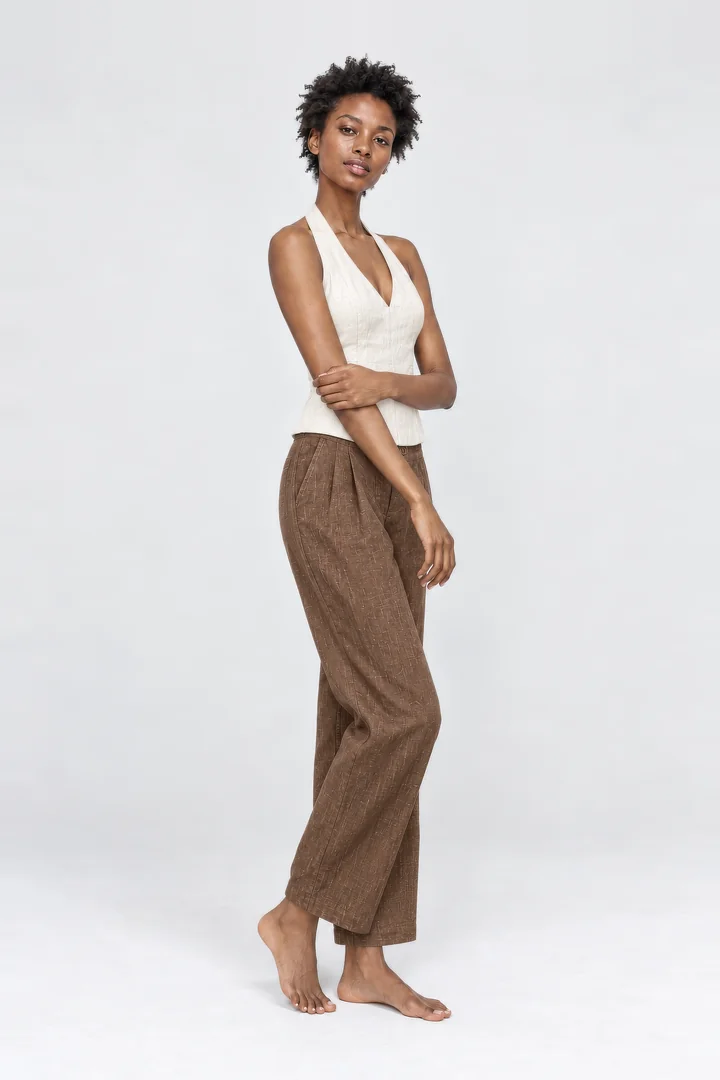
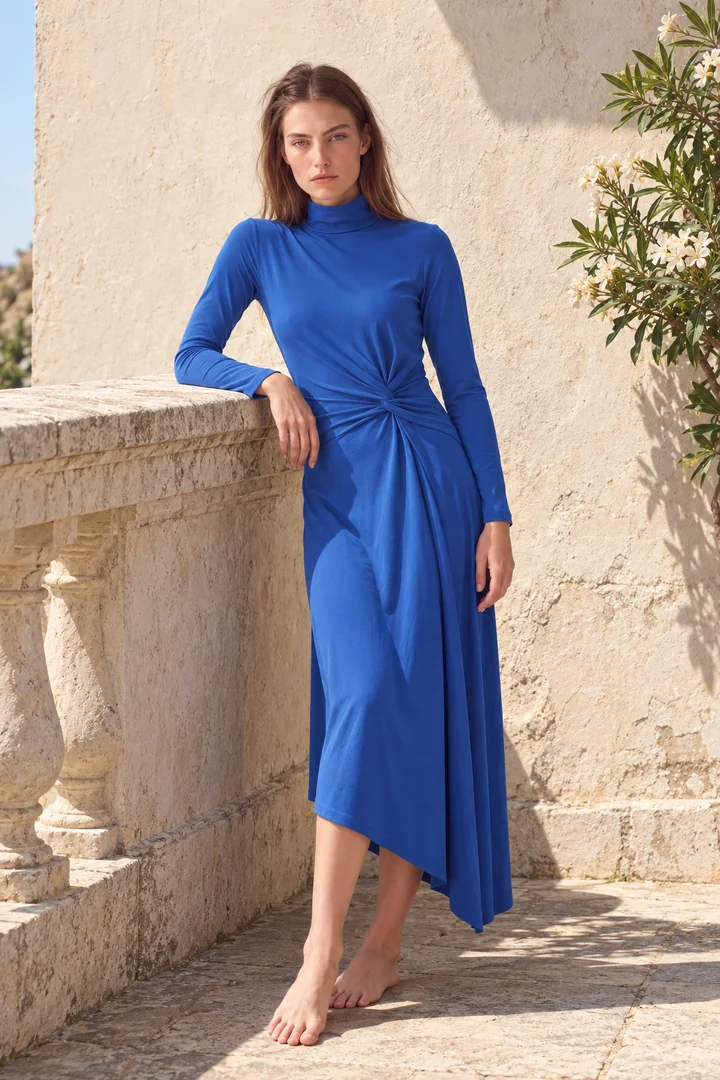
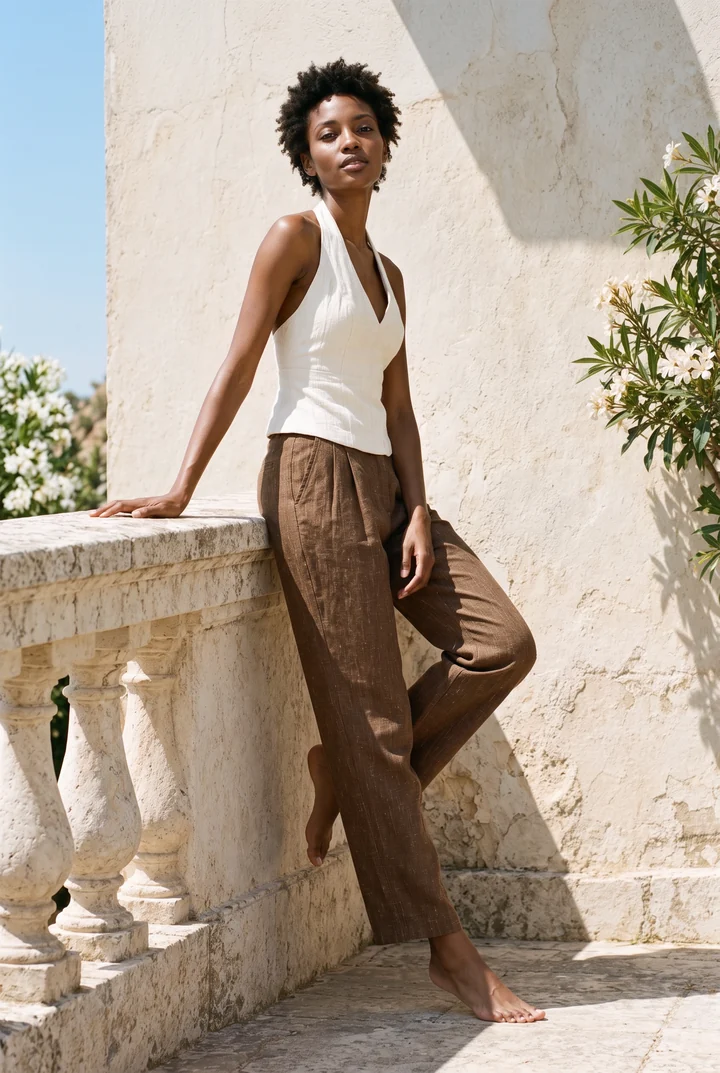
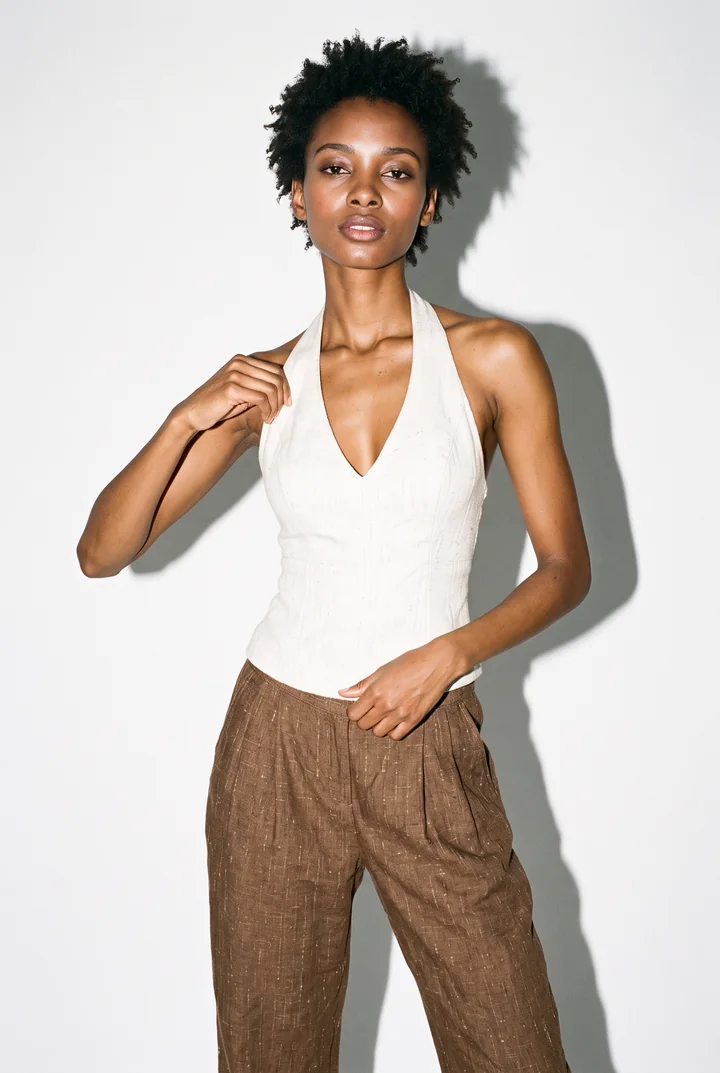
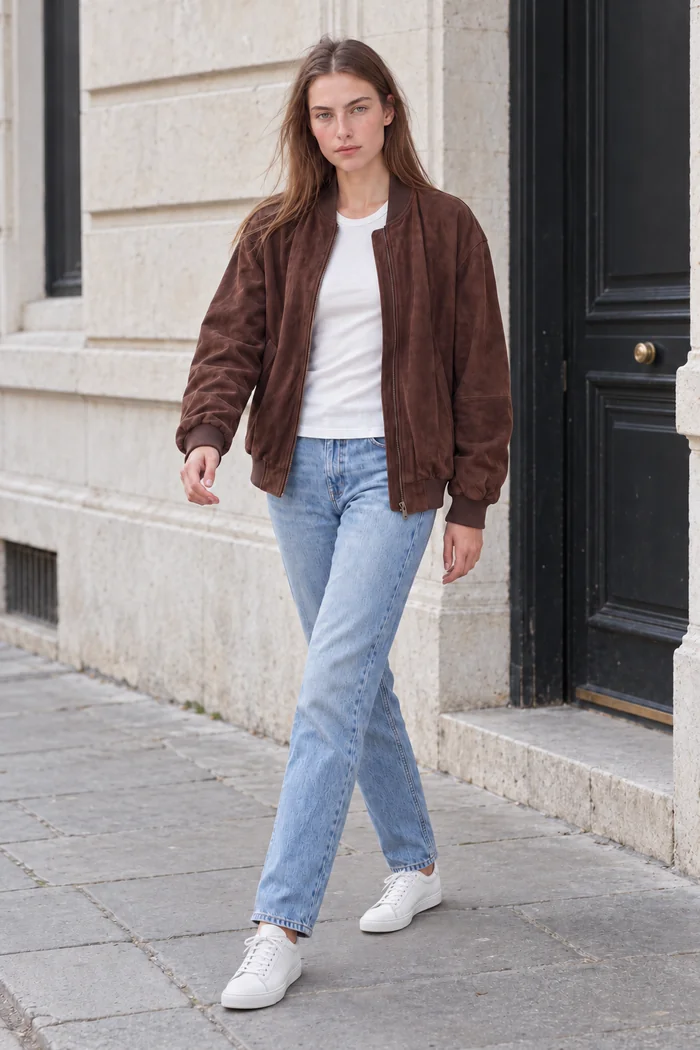
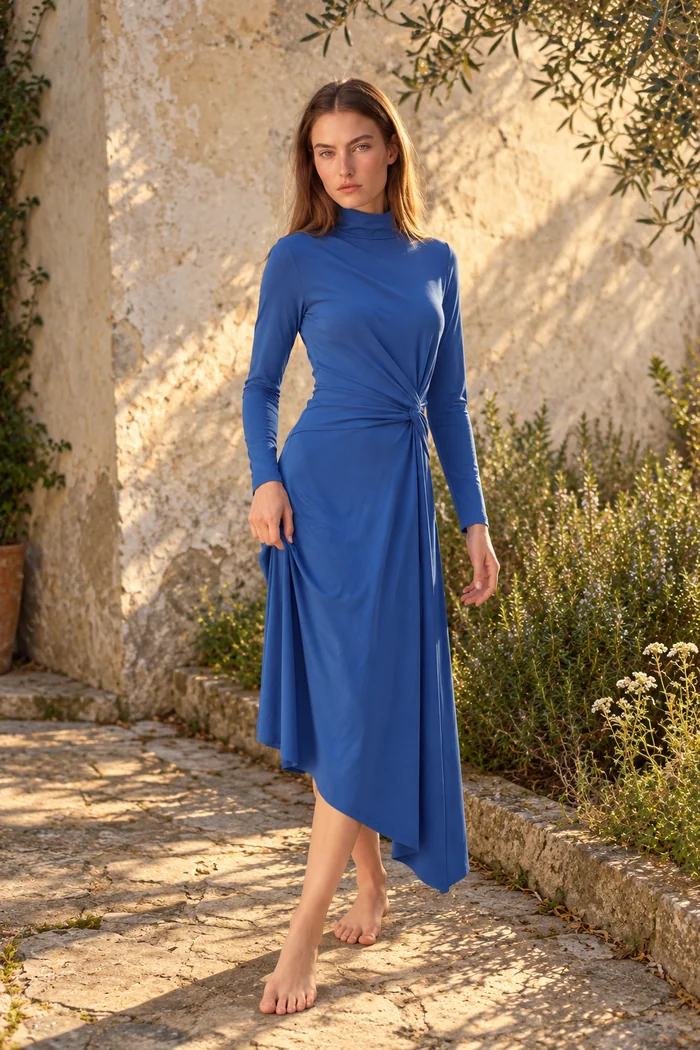
Two looks, one on a studio model photo and one on an outdoor model photo. The setting comes from the model photo, so the same garments can cover both the product pages and a lookbook.
4. Review the cost before you start
Before anything runs, the review screen shows the number of pairs and outputs, the credits per pair, the total, and your available balance. Credits are charged when you start, and any pair that fails is refunded.
A worked example. A try-on with the default engine costs about 3 credits. Say you have 3 models and 8 garments, paired as every combination:
- 3 models × 8 garments = 24 pairs
- 24 pairs × 3 credits = 72 credits
That fits inside a Standard pack of 90 credits ($7.99) with room for a few retakes. Premium engines, higher resolutions and extra variations cost more, so treat this as a floor, not a quote. The review screen always shows the exact amount for your settings.
On the web, credits come in one-time top-up packs with no subscription: 90 credits for $7.99, 240 for $19.99 and 650 for $49.99. In the app, the same packs come as monthly subscriptions. The pricing page has the current details.
5. Let it run
Start the batch and get on with something else. It runs in the background, so you can close the app or the browser tab. Results collect in your batch history as they finish.
Batch Try-On works on the phone and in the web studio, on the same account. A practical split: collect garment photos on the phone as they come in from the warehouse, and review the finished set on a larger screen.
6. Review, filter and save
Open the batch from your history. The summary shows how many images are ready, how many failed and the total. Filter the grid by all, completed, failed or still processing.
Go through the completed images the way you would go through a contact sheet from a shoot. Check the details that matter for a sale: the neckline, the print, the length, how the fabric falls. Then select the keepers, or select everything visible in the current filter, and save them in one go.
Every result also opens on its own. From there, two tools take a good image further:
- Reshoot changes the scene, pose or styling. Use it when an image is close but not right, instead of running the pair again, or to give a product shot a lookbook version.
- Animate turns the image into a short video for social posts and listings that take video.
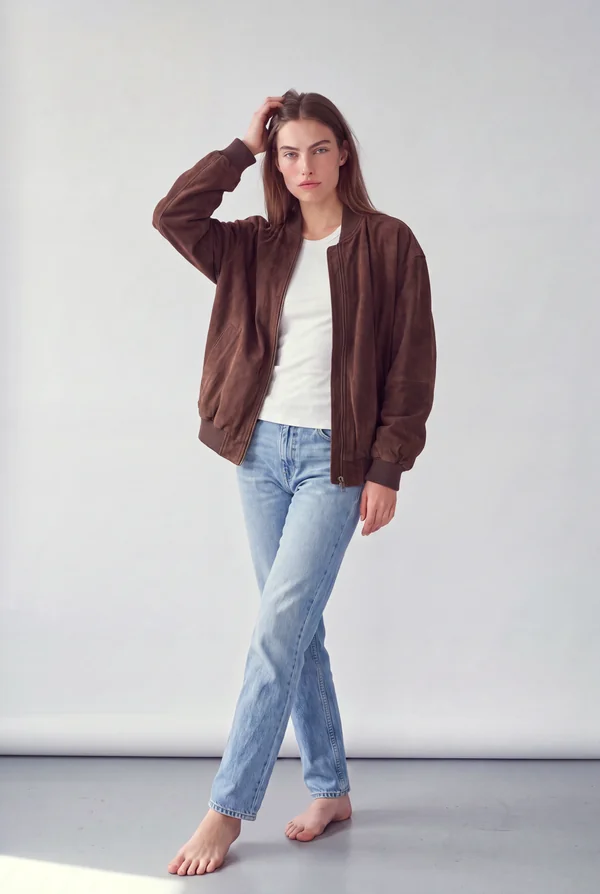
The flat-lay jacket from step 2, on a model in a studio. This is the check to make on every result: the colour, the ribbing and the zip should match the product you are selling.
7. Where the images go
A finished batch covers more than the product page.
- Product pages. Every piece on a model, in the same light, so the collection reads as one.
- Marketplace listings. Consistent on-model images for every listing, ready the same day the stock is.
- Social and newsletters. The outdoor and flash studio versions give you campaign-style frames from the same garments.
Short tips
- Shoot all garment photos for a drop in one session, in the same place, so colour and light stay consistent.
- Run a small test batch first, one model and three or four garments, before committing to the full set.
- If you plan to pair in order, select the models and garments in matching order, then check the pair preview.
- Create a house model in Models, or keep a short list of studio models that suit the brand, and reuse them for every drop. The catalog will look like one shoot.
- Check the review screen every time. Engine and resolution change the cost, and it is cheaper to adjust there than after the run.